
What Is the Bubble365 Application?
Redcactus – Bubble 365 is a powerful CRM integration platform that connects more than 200 CRM, ERP, and ticketing systems with OneCloud. Check available platforms from Marketplace -> CLICK HERE
The service runs completely in the cloud—no software installation required. You can use it through a browser extension, mobile app, or directly inside Microsoft Teams.
Key Features
- Call CTI – Manage calls directly from the app: answer, hold, transfer, or hang up.
→ Enables using the Teams app with OneCloud running in the background – make and receive calls directly in Teams. - Integrations with 200+ systems
- Mobile app displays caller information before you answer
- Add call notes on any device right after a call
- Search bar for CRM contacts – quickly find and call contacts
- iFrame integration – ideal for developers who prefer not to build a full telephony notification module
1. Create Your API Key
To activate the Bubble365 integration, you must first create your Setera OneCloud personal API key.
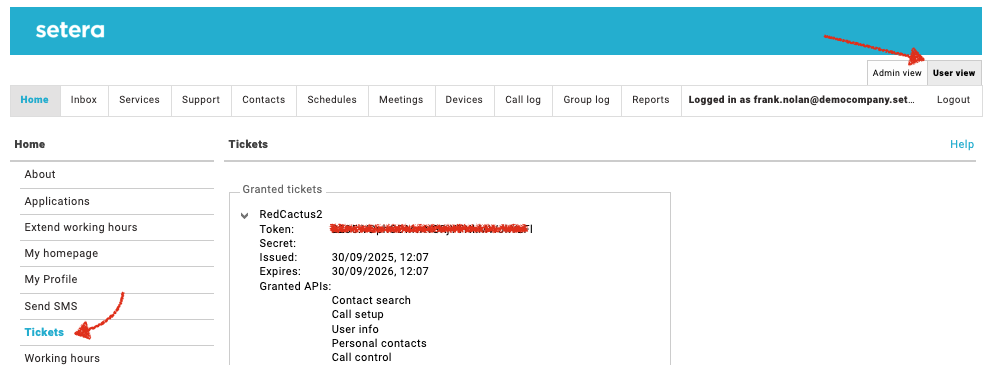
Log in to the OneCloud portal (select User view if you are an Admin):
https://onecloud.setera.comGo to Tickets → Create Ticket (If you are not allowed to create tickets, please contact your OneCloud Admin user or Setera Support)
Allow the following permissions:
- Contact search
- Call setup
- User info
- Personal contacts
- Call control
Save the API Token from the ticket—you will need it in the next step when configuring Bubble 365.
IMPORTANT:
- Never share your API key publicly — handle it securely.
- The API key is valid for 1 year and must be renewed after expiration.
2. Activate Your Bubble 365 Account
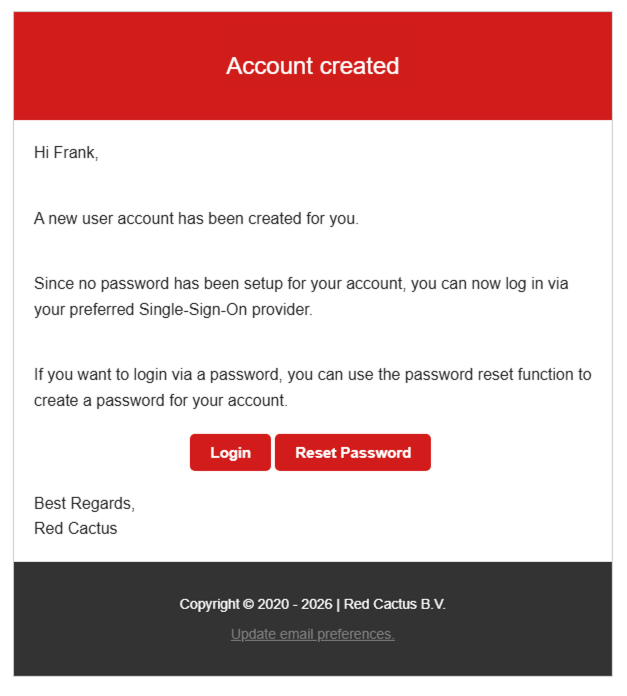
You will receive an email invitation to activate your Bubble 365 account using:
- Single Sign-On (Microsoft, Google, Apple)
or - Login with email + password
3. Connect Your OneCloud account to Bubble365
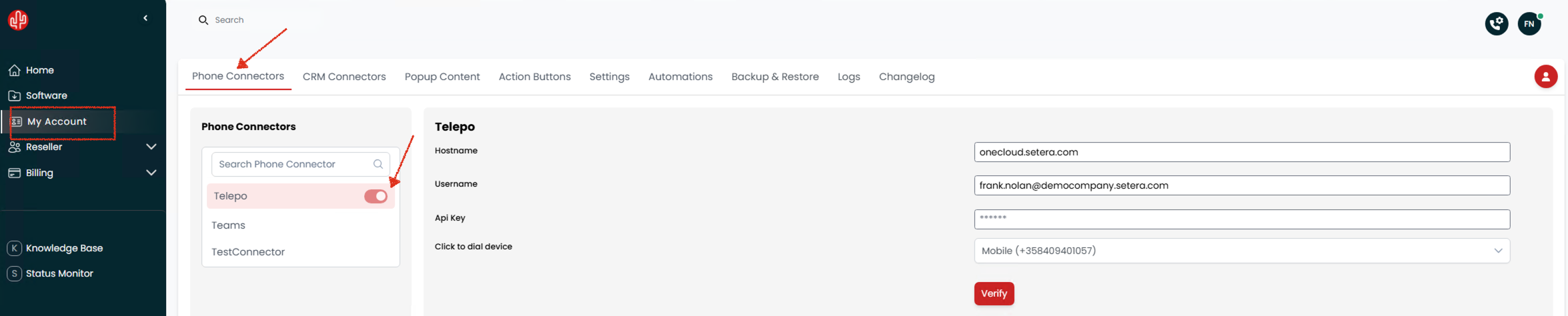
Go to My Account → Webconfigurator → Phone Connectors
Search for and select the connector named “Telepo”
(Telepo is the product name of the OneCloud platform provider)Fill in the required fields:
- Hostname:
onecloud.setera.com - Username: Your OneCloud username
- API Key: The token you generated in step 1
- Hostname:
Click Verify → Save
4. Configure Your CRM Connector
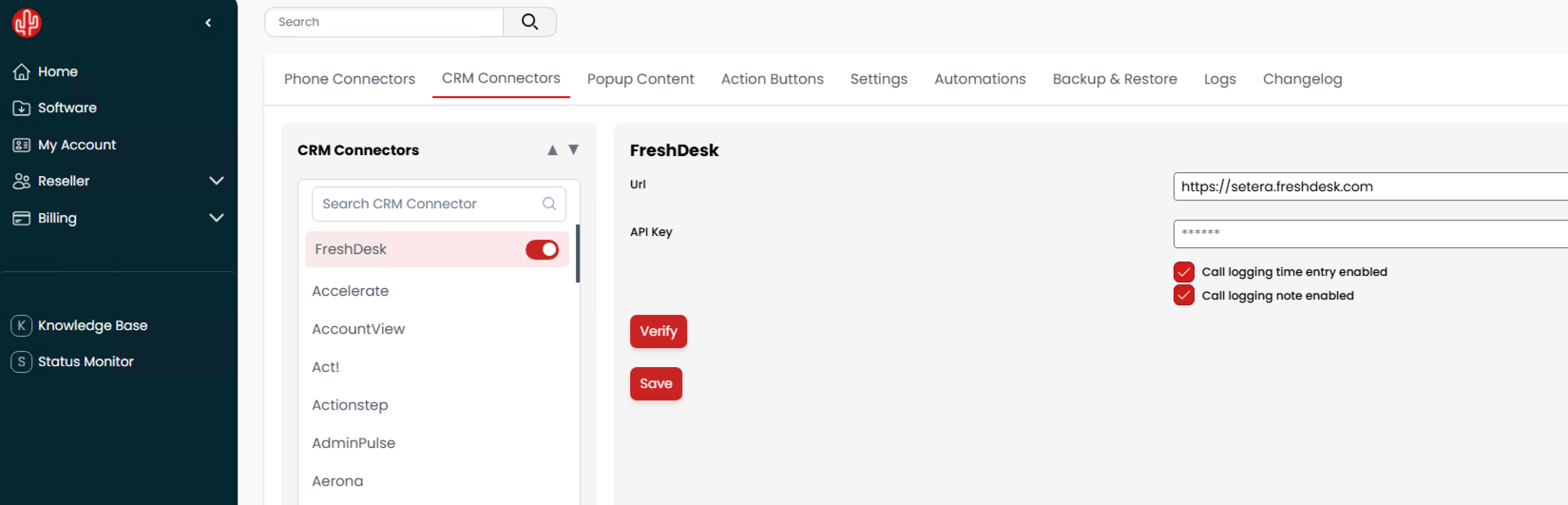
In the CRM Connectors tab:
- Select and configure the CRM system you use.
- Configuration instructions for each supported CRM integration are available in the Redcactus Wiki portal.
- If you need help, contact your Setera contact person or support@setera.com
5. Install the Bubble365 Application
Install the Bubble365 application of your choice.
Available applications and more details can be found here:
https://www.redcactus.cloud/en/bubble-applications
Below are instructions for installing the most commonly used application:
https://wiki.redcactus.cloud/en/35-applications
Please login to Wiki with your Bubble365 account to see instructions.